2026 Omnium UI refresh
Introduction to the 2026 Omnium UI refresh, what has changed, and what it means for how you work.
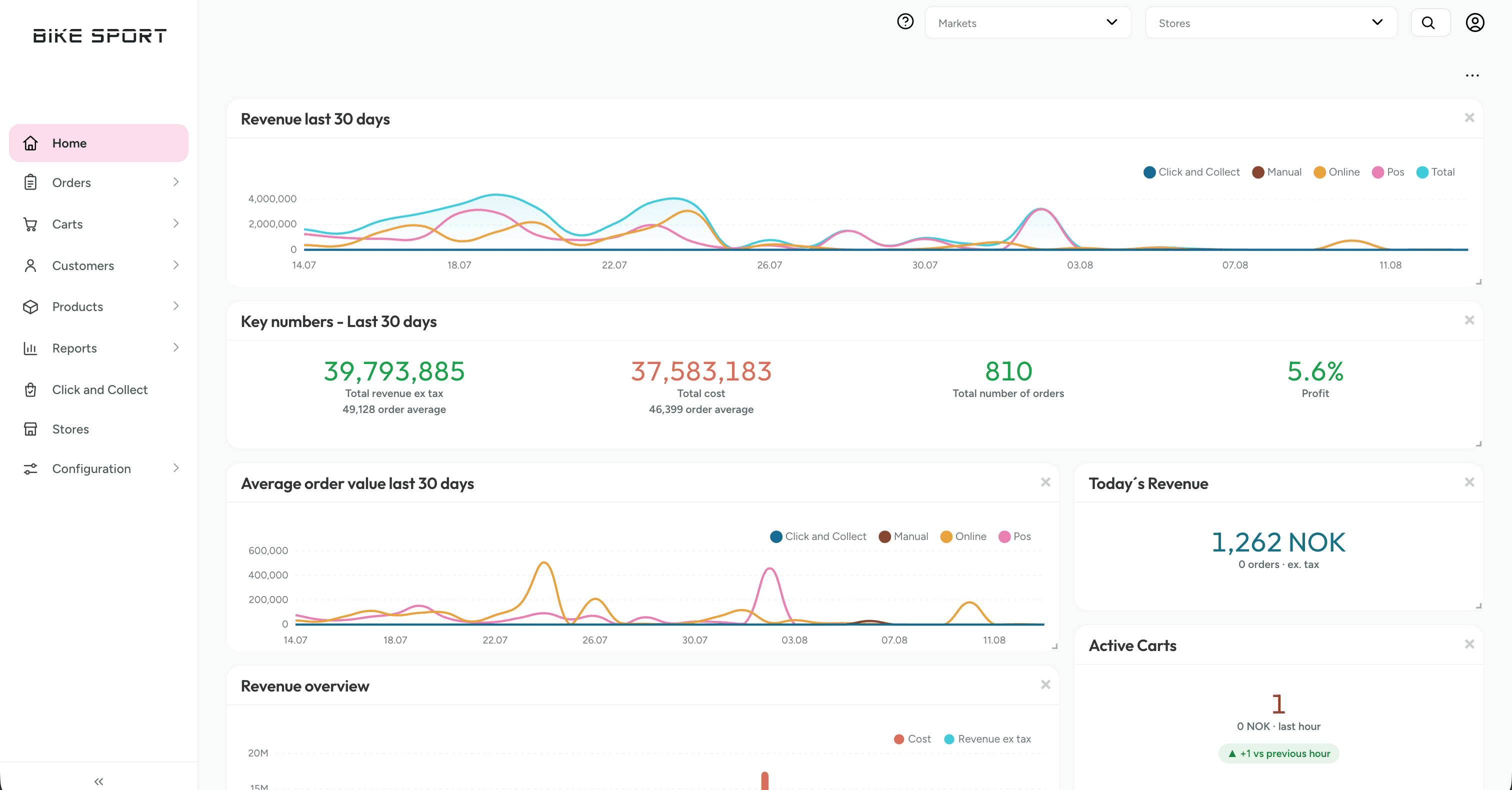
Omnium has received an application-wide UI refresh. The features and workflows are the same as before, but the interface has been modernized throughout, with a cleaner and more consistent look and a much better dark mode. A few structural changes are worth knowing about.
Highlights
- Modernized design with refreshed typography, colors, panels, and a redrawn icon set.
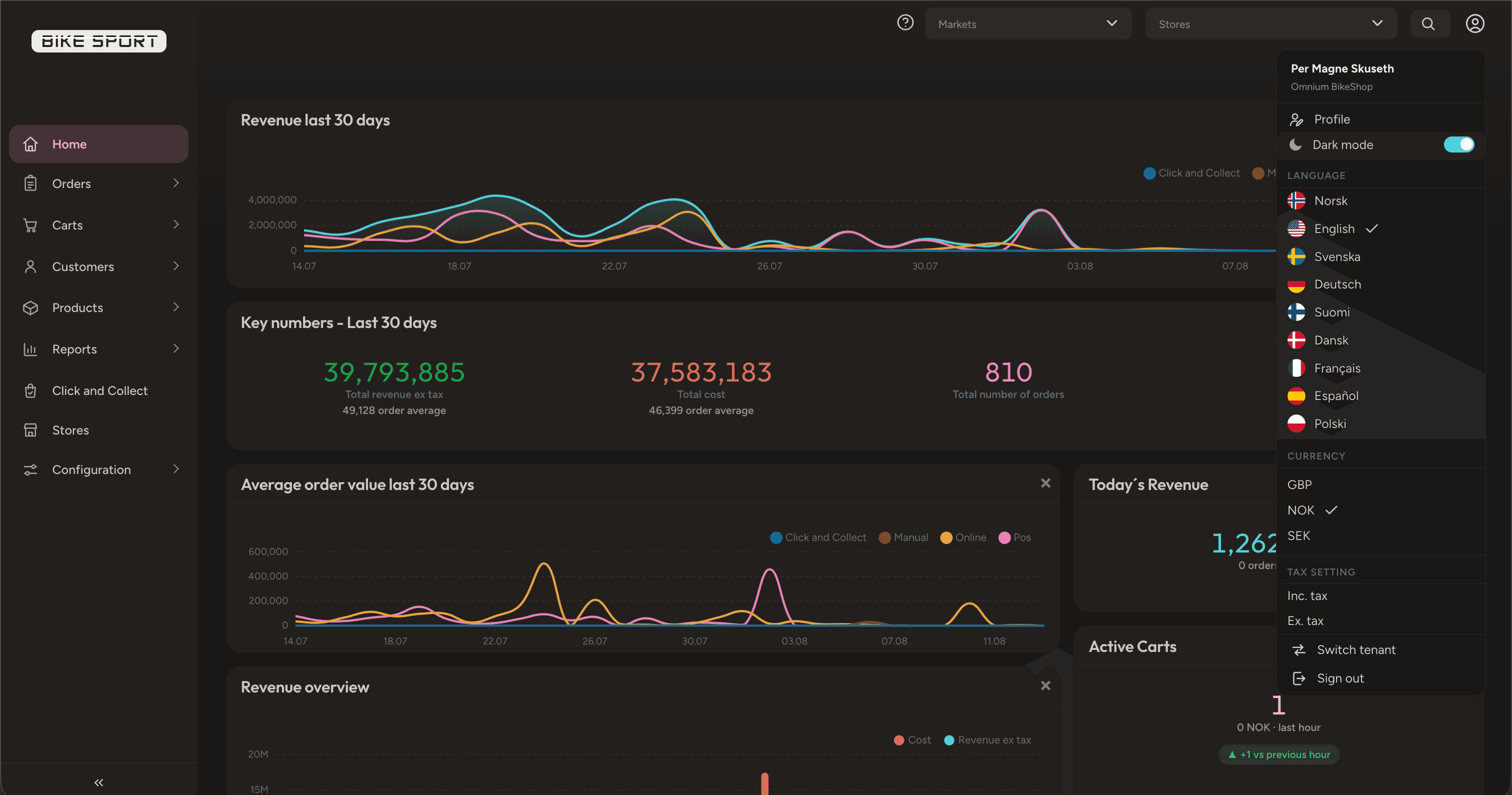
- Fully renewed dark mode that covers the entire application, including charts, dialogs, and menus.
- Refreshed sidebar and navigation.
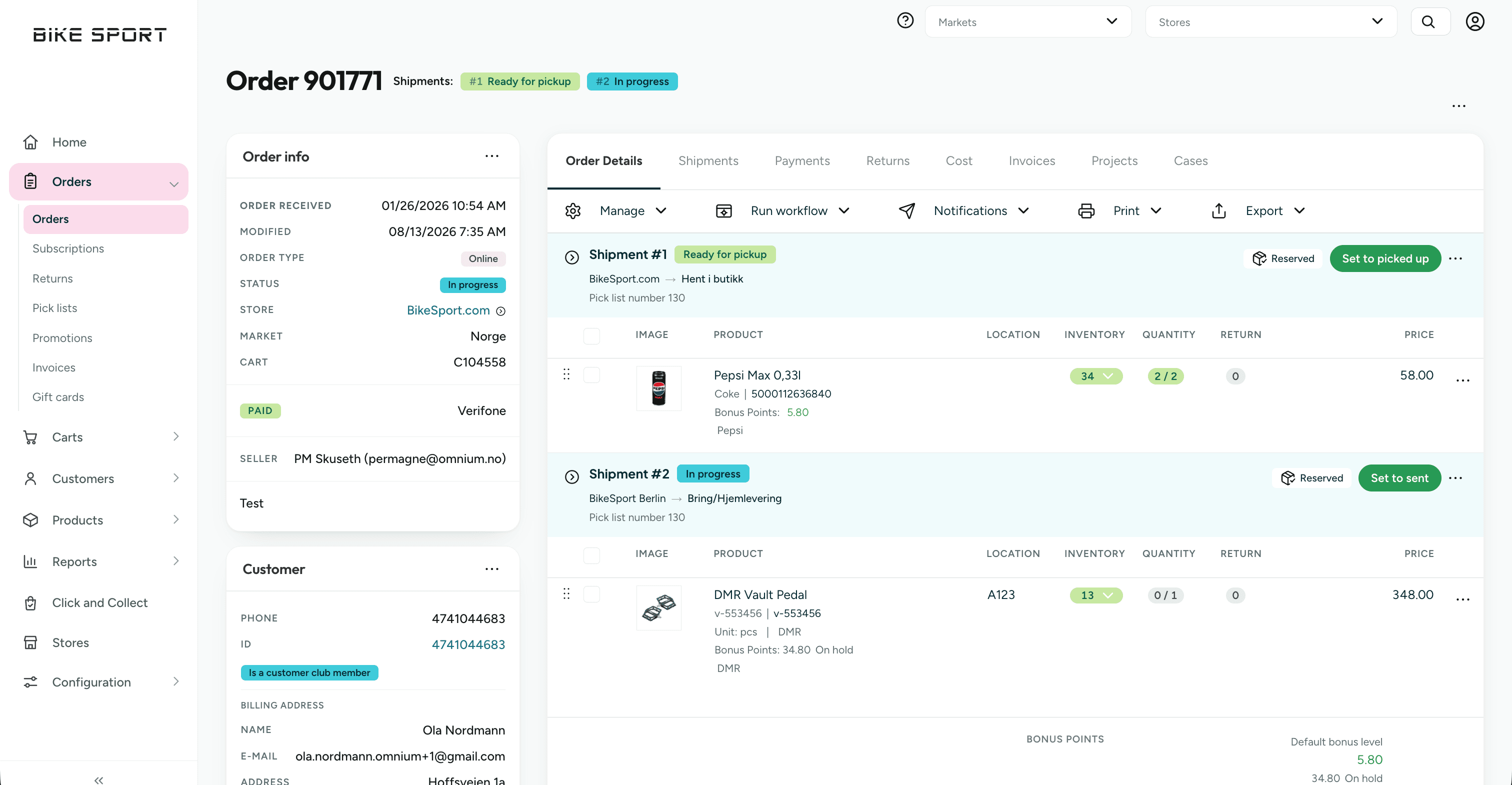
- New order page with statuses shown as a progress chain, and shipment actions placed on the shipments themselves.
- Unified status badges that look and behave the same everywhere.
- New look for charts and dashboards, with a consistent chart palette in both light and dark mode.
- Cleaner lists, search, and filters across all views.
- Modernized forms and input fields with clearer focus states and better keyboard accessibility.
- Better error messages and loading performance, including offline detection.
- Improved mobile experience with compact order cards and navigation adapted for small screens.
- Accessibility improvements such as visible keyboard focus and support for reduced motion.
In addition to the highlights, the refresh includes countless smaller tweaks, alignment fixes, and polish across the whole application.
Changes to how you work
Most of the refresh is visual. Features and data are where they were before. Two changes affect day-to-day navigation and order handling:
Main navigation has moved to the left menu
The top menu is gone. All first-level navigation now lives in the left sidebar, and the top bar is reserved for market and store selection, search, and your user menu. If you are used to reaching sections from the top of the screen, look to the left sidebar instead.
Shipment status is updated on the shipment
On orders with multiple shipments, the status update button is now placed directly on each shipment in the order details, not in the left panel. Each shipment shows its own status and its own action button, for example Set to picked up or Set to sent.
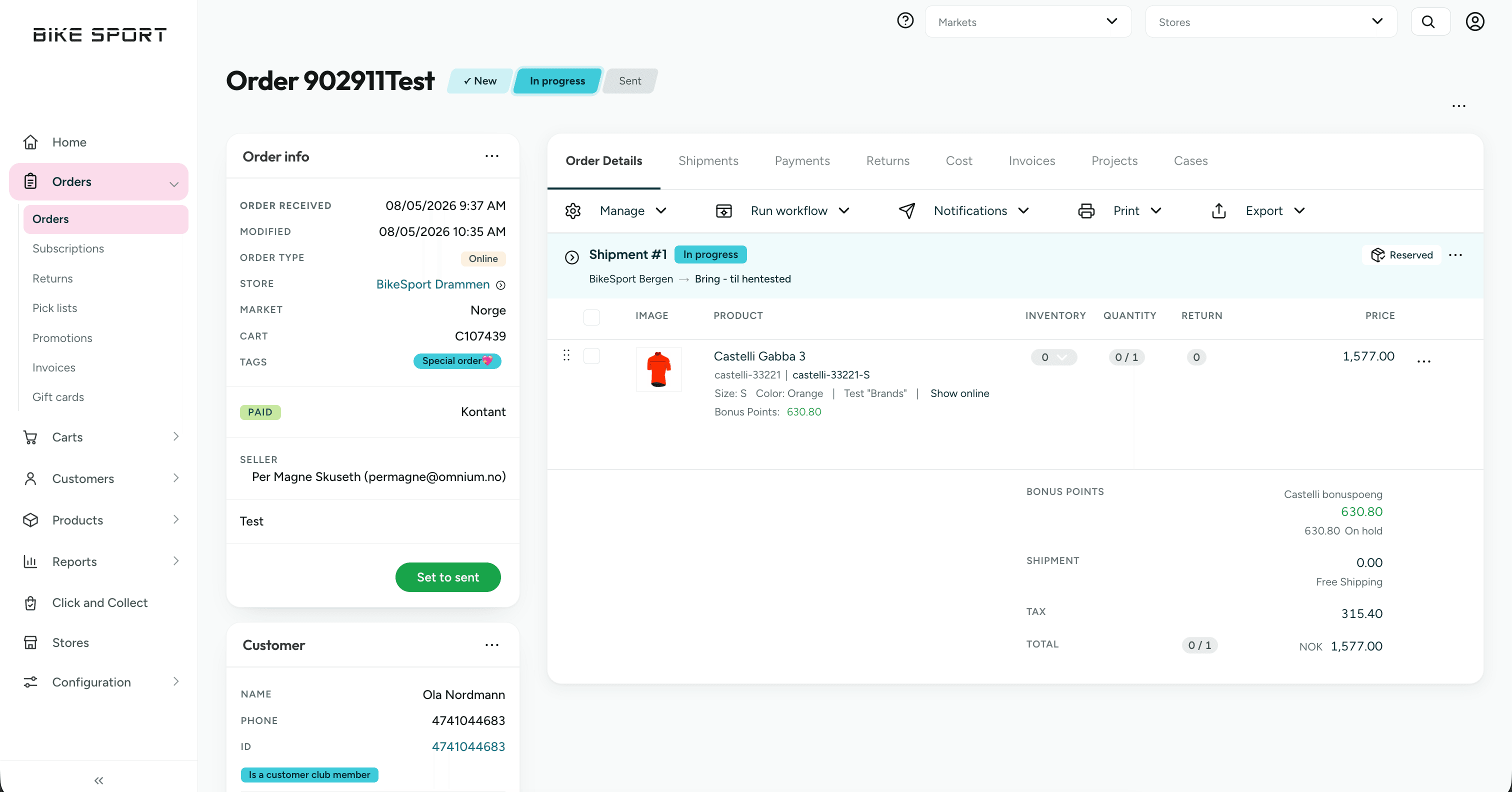
Orders with a single shipment keep the order-level action in the left panel, as before.
Dark mode
Dark mode has been rebuilt to cover the full application, including charts, badges, dialogs, and menus. Toggle it from the user menu in the top right corner.