

Reservation Reconciliation
Compare the reserved quantity on the inventory with what open orders and internal transfers reserve, and find orders that hold a stale reservation.
You find the report in Reports → Inventory → Reservation reconciliation.
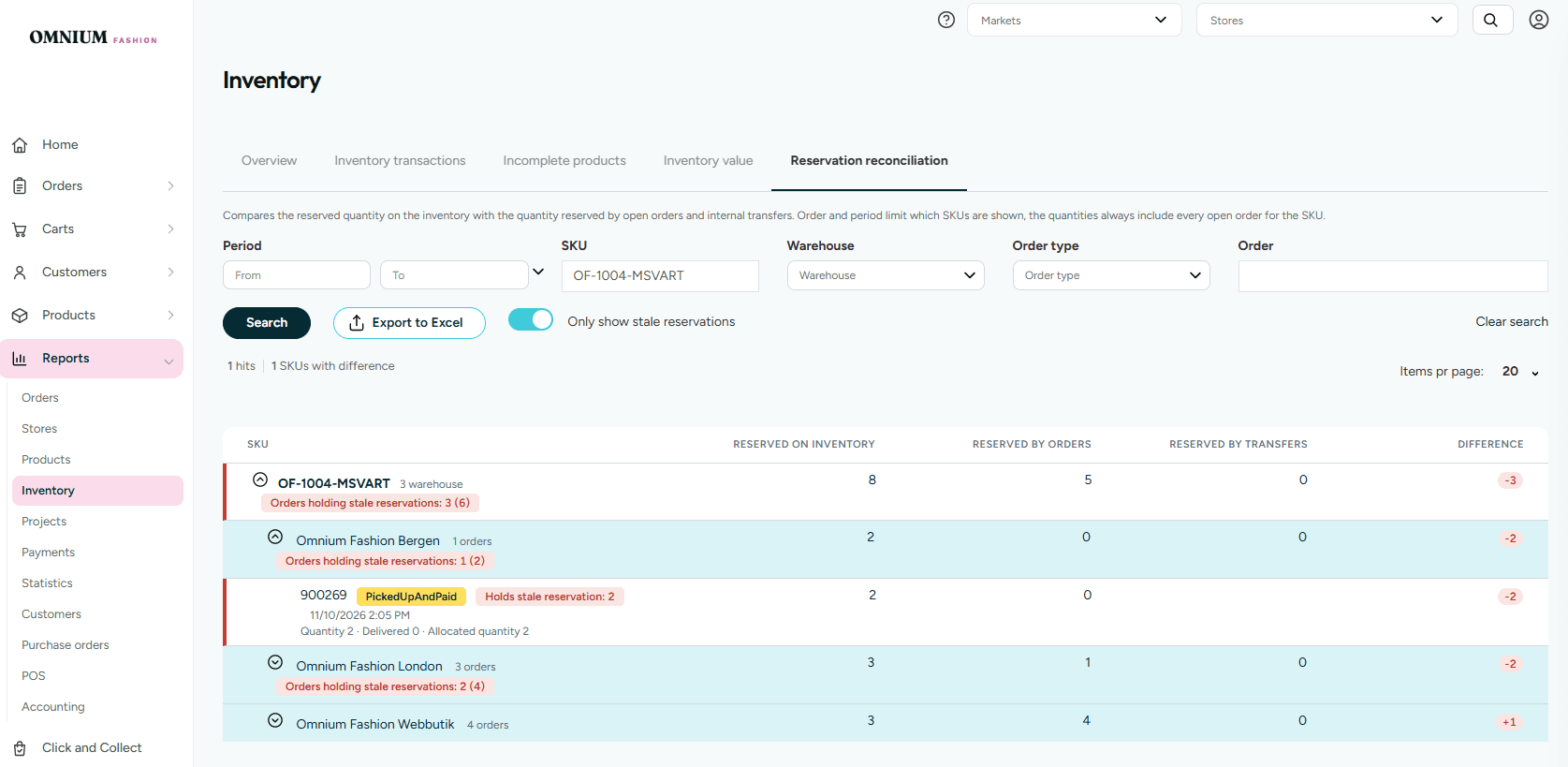
The Reservation reconciliation report compares the reserved quantity on each inventory item with the quantity that open orders and internal transfers reserve. Use it when the available inventory of a SKU looks too low, and you suspect that reservations are not released. The report shows per SKU, warehouse and order where the numbers differ, and which orders still hold a reservation they should have released.
What is a stale reservation? An order holds a stale reservation on a SKU and warehouse when both of these are true:
- The inventory reserves more than the open orders and internal transfers do. The difference is negative.
- The order holds more according to its inventory transactions than it should reserve according to its order lines. What the order holds is the sum of the reserved inventory changes that carry the order id.
The stale quantity is what the order holds minus what it should reserve. Typically it is a delivered or canceled order whose reservation was never released, so it should reserve nothing but still holds the reserved quantity.
Why do I get more results with Only show stale reservations off? The switch is a filter. It only removes SKUs, so with the switch on you get the same number of results as with it off, or fewer.
- Switch off shows every SKU that has a reservation: on the inventory, by orders or by transfers. This includes the SKUs where everything is correct, with a difference of
0. - Switch on shows only the SKUs where the inventory reserves more than the orders, and an order holds a stale reservation or part of the reservation has no order behind it.
With the switch off, SKUs with difference above the list shows how many of the hits have a difference. Not every difference is stale: a positive difference, where the inventory reserves less than the orders, is never stale. Neither is a negative difference where no order holds too much and no reservation is without an order.
Key concepts
| Term | Meaning |
|---|---|
| Reserved on inventory | The reserved quantity stored on the inventory item for the SKU and warehouse. This is the number that reduces the available inventory. |
| Reserved by orders | The quantity that open orders reserve, calculated from their order lines. Only orders in a status that reserves inventory count. |
| Reserved by transfers | The quantity that internal transfers (purchase orders with a source warehouse) reserve on the source warehouse. |
| Difference | Reserved by orders + Reserved by transfers − Reserved on inventory. 0 means that the inventory agrees with the orders. A negative number means that the inventory reserves more than the orders do. A positive number means that the inventory reserves less. |
| Held by transactions | For one order: the reservation the order still holds according to the inventory transactions. It is the sum of the reserved inventory changes that carry the order id. |
| Stale reservation | An order holds more according to the inventory transactions than it should reserve, on a warehouse where the inventory reserves more than the orders. Typically a delivered or canceled order whose reservation was never released. |
| Reserved without a listed order | The part of the reserved quantity on a warehouse that no listed order holds. It comes from transactions without an order id, such as a reserved inventory recalculation, a manual change, or a reservation made through the API without an order. |
The Reserved by orders number uses the same selection of orders as the reserved inventory recalculation: orders of a configured order type that are not in a status that is delivered or excluded from reserved inventory, created in the last two years. Statuses are configured per order type, see IsExcludedFromReservedInventory in order configuration. Orders found only through the inventory transactions, such as delivered orders, are listed in the report but never counted.
Filters
| Filter | Description |
|---|---|
| Period | Shows only SKUs that are on orders created in the period. A date without a time includes the whole day. |
| SKU | Shows one SKU. |
| Warehouse | Shows only the selected warehouse. Lists the warehouses the user has access to. |
| Order type | With Only show stale reservations on: shows SKUs where an order of this type holds a stale reservation. Otherwise: shows SKUs that have an order of this type. |
| Order | Shows the SKUs on the order. The order is listed whatever its status, so you can inspect a delivered order that still holds a reservation. |
| Only show stale reservations | On by default. Shows only SKUs with a warehouse where the inventory reserves more than the orders, and an order holds a stale reservation or, when no order type is selected, part of the reservation is held by no listed order. |
Period, Order and Order type limit which SKUs are shown. The quantities on a SKU always include every open order for the SKU, not only the orders that match the filters.
Nothing is loaded when you open the tab. Click Search, or change a filter, to run the report. Clear search resets the filters, and turns Only show stale reservations on again.
Reading the result
The result has three levels. Click a row to expand it.
- SKU — the totals over all warehouses, the number of warehouses, and a red Orders holding stale reservations badge with the number of orders and the stale quantity. The difference badge is green when every warehouse agrees, and red when the total differs. The total is yellow when the warehouses differ but cancel each other out.
- Warehouse — the same columns per warehouse. A virtual stock location is shown as (Virtual → physical warehouse).
- Order and transfer — each order and internal transfer that reserves the SKU on the warehouse, with a link to it.
On an order row:
- The Reserved on inventory column shows Held by transactions for the order.
- The Reserved by orders column shows what the order should reserve according to its order lines.
- The Difference column shows a red badge when the two numbers differ.
- The status has a yellow badge when the order should reserve nothing, because it is delivered or canceled, by status or on every line, or its status does not reserve inventory.
- A red Holds stale reservation badge shows the stale quantity.
- The line below the order number shows the quantity, delivered quantity, canceled quantity, returned quantity and allocated (reserved) quantity of the SKU on the order.
When a warehouse has a reservation that no listed order holds, a Reserved without a listed order row shows the quantity.
The bar above the result shows the total number of hits and the number of SKUs with difference. SKUs with a difference are listed first.
When the search returns exactly one SKU, the report expands the SKU and every warehouse with a difference.
Held by transactions is worked out by reading every inventory transaction of the SKU, so the report does not always fill it in:
- With Only show stale reservations on, it is filled in for every SKU where the inventory reserves more than the orders.
- With the switch off, it is filled in only when the page you are on shows 50 SKUs or fewer. With Items pr page set to 20 or 50 it is always filled in. With 100, the column is empty on the order rows unless the page has 50 SKUs or fewer, for example when the search has fewer hits.
A delivered or canceled order should not hold a reservation. When one still does, according to the inventory transactions, the reservation was not released, and the report lists the order with a stale reservation. The report lists such an order only on a warehouse where the inventory reserves more than the orders. Where the inventory agrees with the orders, a reserved inventory recalculation has already released the reservation without the order id, so the order is not listed.
Export to Excel
Click Export to Excel to download the report as an .xlsx file. The file holds every SKU that matches the filters, not only the page on the screen.
The sheet is flat, so you can sort, filter and pivot it. It has one row per order, internal transfer and reservation without a listed order, on each SKU and warehouse. A warehouse with a reservation but no listed orders gets one row with empty order columns, so no difference is lost.
| Column | Description |
|---|---|
| SKU | The SKU. |
| Warehouse code | The warehouse. |
| Physical warehouse | The physical warehouse of a virtual stock location. Empty for a physical warehouse. |
| Type | Order, internal transfer, reserved without a listed order, or warehouse (a warehouse row without orders). |
| Order number | The order or purchase order number. |
| Order id | The order or purchase order id. |
| Order type | The order type of an order. |
| Status | The order or purchase order status. |
| Created | The created date, in the user's time zone. |
| Reserved by order or transfer | What the order or transfer reserves according to its lines. |
| Held by transactions | What the order holds according to the inventory transactions. On a reserved without a listed order row: the quantity no listed order holds. |
| Stale reservation | The stale quantity the order holds. |
| Quantity, Delivered quantity, Canceled quantity, Returned, Allocated quantity | The quantities of the SKU on the order. |
| Warehouse: reserved on inventory | The warehouse total, repeated on every row of the warehouse. |
| Warehouse: reserved by orders | The warehouse total, repeated on every row of the warehouse. |
| Warehouse: reserved by transfers | The warehouse total, repeated on every row of the warehouse. |
| Warehouse: difference | The warehouse total, repeated on every row of the warehouse. |
The order columns can be summed. The Warehouse: columns repeat the totals on every row of the warehouse, so do not sum them.
A virtual stock location is left out of the sheet when its physical warehouse is in the sheet, since the physical warehouse lists the same orders. Filter on the virtual warehouse to export it.
Typical findings
| What you see | What it means |
|---|---|
| A delivered or canceled order with Holds stale reservation | The reservation was not released when the order was delivered or canceled. The available inventory is too low by the stale quantity. |
| A Reserved without a listed order row with a positive quantity on an over-reserved warehouse | The reservation was set without an order id, for example by a recalculation, a manual change, or a reservation through the API. |
| An open order where Held by transactions differs from Reserved by orders | The reservation on the order lines and the reservation booked on the inventory have drifted apart for this order. |
| A positive difference | The inventory reserves less than the orders. The available inventory is too high. |
Related documentation
- Inventory configuration — reservation settings
- Resolve Over-Reserved Inventory — scheduled task that removes reservations that exceed the stock
- Recalculate Reserved Inventory — workflow step that recalculates the reserved inventory from all open orders
- Virtual Stock Locations