

Scheduled Tasks
Configure and manage background jobs in Omnium
Scheduled tasks are background jobs that run automatically at specified intervals to maintain data consistency, synchronize with external systems, send notifications, and perform various housekeeping operations in Omnium.
Cron Schedule Format
Scheduling is controlled by a cron schedule:
Common Schedule Examples
| Schedule | Description |
|---|---|
*/5 * * * * | Every 5 minutes |
0 * * * * | Every hour (at minute 0) |
0 */6 * * * | Every 6 hours |
0 0 * * * | Daily at midnight |
0 3 * * * | Daily at 3:00 AM |
0 0 * * 0 | Weekly on Sunday at midnight |
0 0 1 * * | Monthly on the 1st at midnight |
Task Groups
Omnium scheduled tasks are organized into functional groups:
| Group | Description | Tasks |
|---|---|---|
| Analytics | Statistics generation, data aggregation, and reporting | 8 |
| Customer Club | Loyalty program management, points, birthdays, and member notifications | 9 |
| Orders | Order lifecycle management, allocation, automation, and cleanup | 11 |
| Products | Product data maintenance, pricing, assortment, and inventory status | 11 |
| Inventory | Stock levels, allocation tracking, valuation, and reorder suggestions | 7 |
| Carts | Shopping cart maintenance and conversion | 2 |
| Vouchers | Voucher lifecycle and reactivation | 2 |
| Prices | Price data cleanup and maintenance | 2 |
| Projects | Project lifecycle and anonymization | 2 |
| Ratings | Product rating verification | 1 |
| Stores | Store data maintenance | 1 |
| Subscriptions | Subscription order generation | 1 |
| Notifications | Notification processing and delivery | 1 |
| Events | Event log maintenance | 1 |
Task Types
Delta Tasks
Delta tasks process only data that has changed since the last run. They are efficient and can run frequently (every few minutes). Examples include order import tasks and inventory sync tasks.
Full Tasks
Full tasks process all relevant data regardless of changes. They are typically scheduled less frequently (daily or weekly) and are used for data consistency checks, cleanup operations, or complete recalculations.
Configuration
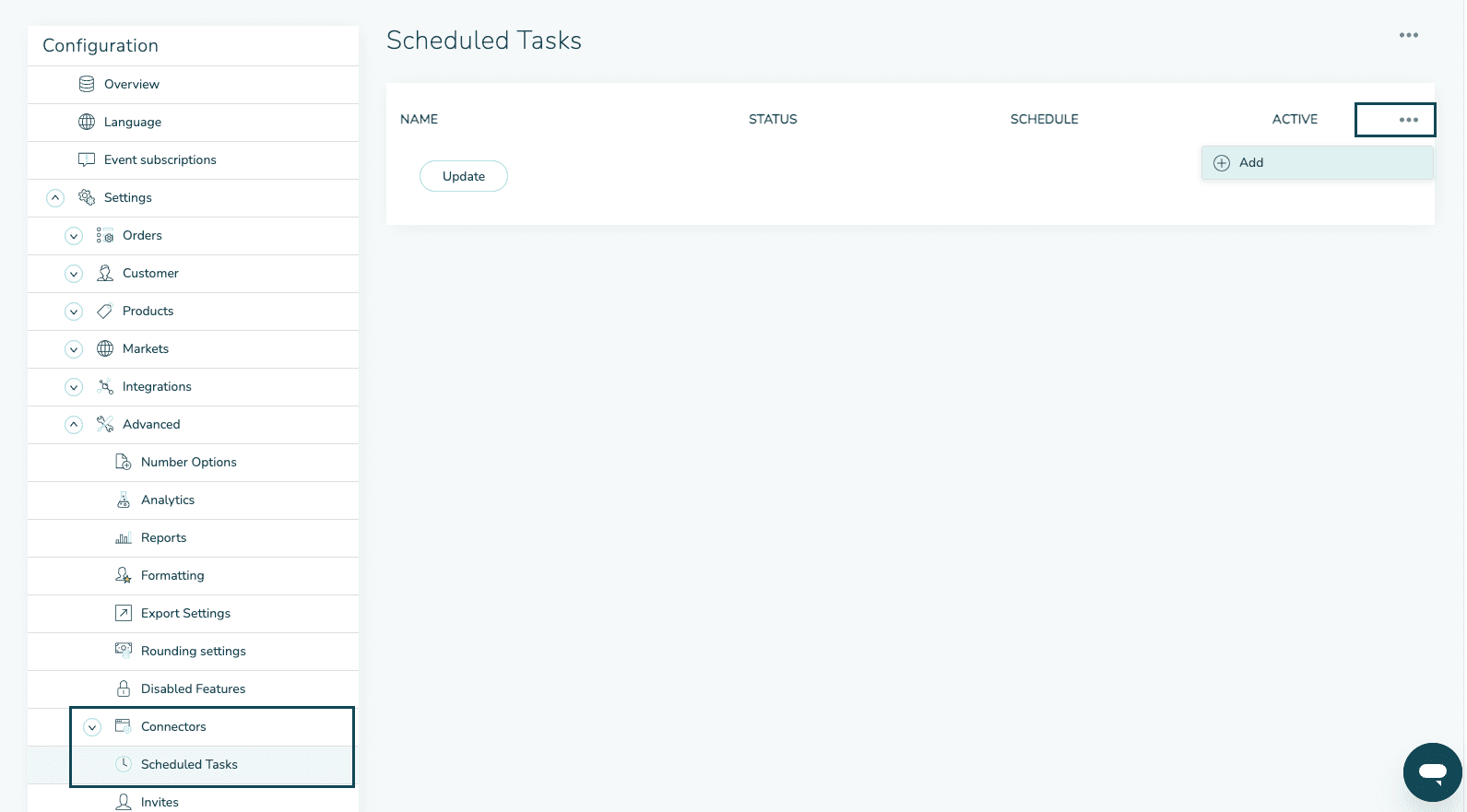
Scheduled tasks are configured by adding entries to ScheduledTaskSettings. Navigate to Configuration > Advanced > Connectors > Scheduled Task in the Omnium UI.
Configuration Properties
| Property | Type | Description |
|---|---|---|
Schedule | string | Cron expression defining when the task runs |
ImplementationType | string | The scheduled task class name |
IsDisabled | bool | Set to true to temporarily disable the task |
Properties | array | Task-specific configuration properties |
Example Configuration
Configuration with Properties
Some tasks accept additional configuration properties:
Plugin Scheduled Tasks
Scheduled tasks for external integrations (ERP, POS, E-commerce, WMS, etc.) are documented within each plugin's documentation:
Point of Sale (POS)
- Sitoo - Order import, product/inventory export
- FrontSystems - Product import, inventory sync
- Flow - Product, price, and inventory export
- VisionPOS - Product and inventory import
ERP Systems
- Dynamics 365 - Orders, inventory, prices, customers
- Vitari Connect - Orders, inventory, invoices
- TripleTex - Invoice synchronization
- PowerOffice Go - Cash sale export, bank vouchers
E-commerce Platforms
- Shopify - Products, orders, inventory
- Magento - Products, orders, customers, inventory
- Jetshop - Products, orders, inventory
Warehouse Management
- Ongoing WMS - Order and inventory synchronization
Product Feeds
- Google Shopping - Product feed export
- Nosto - Product recommendations export
Best Practices
Scheduling Guidelines
- Delta tasks: Schedule frequently (every 1-15 minutes) for near real-time sync
- Full tasks: Schedule during off-peak hours (typically 2-5 AM)
- Heavy tasks: Avoid running multiple resource-intensive tasks simultaneously
- Cleanup tasks: Run weekly or monthly depending on data volume
Monitoring
- Check the scheduled task execution logs regularly
- Set up alerts for failed task executions
- Monitor task duration trends for performance issues
Troubleshooting
- If a task fails, check the event log for detailed error messages
- Verify that required settings and configurations are in place
- For integration tasks, ensure external system credentials are valid