

Allocation Rules (BETA)
Create an allocation rule that steers which stores and warehouses the allocation engine ships an order from, with a worked example.
Beta
Allocation rules tell the allocation engine which stores (warehouses) it may, may not, or should prefer to ship from - for example "small orders ship from the webshop warehouse", "bulky goods only from stores that can handle them", or "never split a click-and-collect order". Rules are the main way to put your sourcing policy for distributed order management (DOM) into the engine without changing code.
Manage rules in Configuration → Allocation → Rules. Select Add rule to start from a Blank rule, or Start from a template to begin from a common pattern - a template fills in the shape, and you set the values.
Start from a rule template
Omnium has 63 rule templates to help you get started. Each template sets up the stage, the condition, and the effects for a common sourcing policy, and leaves the values specific to your business - such as which stores, categories, or shipping methods - for you to fill in. A rule created from a template starts inactive, so you can test it before you switch it on.
| Category | Templates | Examples |
|---|---|---|
| Which warehouse ships what | 20 | A category only from certain stores · Business orders from central warehouses · Never ship from certain warehouses · Prefer certain warehouses |
| Store and product properties | 7 | Stores exclude categories they cannot handle · Heavy goods need a capable warehouse |
| Distance | 3 | Prefer stores close to the customer · Only stores within a distance |
| Splitting into shipments | 7 | Keep the whole order in one shipment · One shipment per requested delivery date · Packages ship separately |
| Shipping methods | 6 | A category blocks a shipping method · Replace a shipping method |
| Click and collect | 4 | Pickup orders ship from the pickup store · Pickup orders prefer the pickup store |
| Stock and incoming supply | 6 | Never wait for a delivery · Prefer stock on hand over incoming supply |
| Reallocation | 3 | Reallocation uses stores with a role · Reallocation falls back to central after repeated attempts |
| Limits on shipments and plans | 7 | Reject shipments that are too heavy · Reject plans using too many stores · All or nothing |
Use Browse templates to see them all with a short description, then adjust the rule like any other - see how a rule is built.
How a rule is built
Read a rule as one sentence: within the scope, when the condition holds, apply the effects.
| Section | What you set there |
|---|---|
| General | The name, the stage the rule runs in, its priority, whether it is active, and the message it leaves in the trace |
| Condition | The condition - the facts about the order, line, product, store, or plan that must be true for the rule to act |
| Effects | What should happen when the condition holds - for example which stores to rule out, restrict to, or prefer |
| Scope | Where the rule is used at all - which markets, order types, customer types, sales stores, triggers, and period |
General: name, stage, and priority
| Field | Description |
|---|---|
| Name | A name that says what the rule does. It identifies the rule in the rule list, the trace, and the simulator |
| Description | Optional. Notes for the people who maintain the rule |
| Stage | What the rule looks at - a line, a shipment, or a whole plan. See the table below |
| Priority | The order the rules run in, lowest first. Exclusions and restrictions are set operations, so priority changes the order of the trace, not the result |
| Active | Only active rules are used. Rules created from a template start inactive, so you can test them first |
| Message | Shown in the trace and to customer service when the rule excludes something. Write it so a person understands why a store was not used |
The Stage decides when the rule is evaluated and which effects it can have:
| Stage | Evaluated | Use it to |
|---|---|---|
| Line | Once per order line, or once per line and store when the condition uses a warehouse.* attribute | Narrow or steer which stores can serve a line, and decide which lines ship together or apart |
| Shipment | Once per shipment in each plan | Reject plans with shipments that are too heavy, too far, or too large |
| Plan | Once per plan | Reject plans with too many shipments or stores, or plans that leave lines unplaced |
Condition: when the rule applies
The condition decides when the rule acts. Each condition compares an attribute with a value, for example Order subtotal (order.subTotal) is less than 200. Select + Condition to add a condition and + Group to add a nested group.
Each group combines its conditions and sub-groups in one of four ways:
| Mode | The group holds when |
|---|---|
| All of these | Every condition in the group holds |
| Any of these | At least one condition holds |
| None of these | No condition holds |
| Not all of these | At least one condition does not hold |
Nest groups to build combinations such as market is Norway and (category is furniture or weight is more than 30 kg).
Attributes are grouped by what they describe. The Available attributes panel beside the editor lists them all with a short description:
| Prefix | Describes | Examples |
|---|---|---|
order. | The order or cart as a whole | order.orderType, order.subTotal, order.currencyCode, order.customerGroups, order.tags |
line. | The order line | line.quantity, line.shippingMethodName, line.pickupWarehouseId, line.isReserved |
product. | The product on the line | product.categoryIds, product.brand, product.tags, product.weightKg, product.properties.<key> |
warehouse. | The store being considered | warehouse.id, warehouse.roles, warehouse.capabilities, warehouse.isCentralWarehouse |
destination. | Where the order is delivered | destination.postalCode, destination.countryCode, destination.distanceFromWarehouseKm |
shipment. | A shipment in a plan (Shipment stage) | shipment.totalWeightKg, shipment.lineCount, shipment.distanceKm |
plan. | A whole plan (Plan stage) | plan.shipmentCount, plan.warehouseCount, plan.isPartial |
context. | The run itself | context.trigger, context.attemptNumber, context.profileKey |
external. | A value provided by a connector | external.<connectorId>.<key> |
The operators you can choose depend on the attribute's type - for example, a number offers is less than and is between, and a list offers contains any of:
| Operator | Meaning |
|---|---|
| is / is not | Equals or does not equal the value |
| is one of / is none of | Equals one of the values, or none of them |
| contains / contains any of / contains all of | A list attribute, such as categories or tags, holds the values |
| starts with | Text starts with the value |
| is more than / is at least / is less than / is at most | Compares numbers or dates |
| is between | A number or date between two values, both included |
| is in postal code range | A postal code inside a range written as 0150-0199, or equal to a single code |
| is set / is not set | The attribute has a value, or has none |
Separate several values with commas. Select Compare with an attribute to compare with another attribute instead of a fixed value - for example, a store property that lists the categories the store does not handle, compared with the product's categories.
An attribute with no value only matches is set and is not set. A rule with no conditions applies to everything its scope covers.
Effects: what should happen
The effects decide what happens when the condition holds. Select Add effect to add one; a rule can have several. The list only offers the effects that belong in the rule's stage.
Effects fall into four kinds:
| Kind | Effects | Behavior |
|---|---|---|
| Rule out or restrict stores | Do not use these stores, Use only these stores, Central warehouses only, roles, capabilities, and stock | Hard: a store that is ruled out is never used for the line. A line left with no store is reported as a line that could not be placed |
| Steer the ranking | Prefer these stores, Avoid these stores | Soft: the Weight says how strongly the preference pulls. It never overrules a hard effect, and it only counts when the ranking profile includes Rule preferences |
| Group lines | Keep these lines in one shipment, Keep apart by, Do not split this line | Decides which lines ship together or apart |
| Shipping methods and plans | Do not use these shipping methods, Use only these shipping methods, Reject the plan, Reject plans using these stores | Limits the shipping methods, or throws away plans that break a limit |
Name stores directly, or switch on Select stores by a fact instead of by name to select them by a condition on the store - for example, every store whose warehouse.roles contains webshop. See all effects for the full list.
Scope: where the rule is used
The scope decides where the rule is used at all. Omnium checks the scope once per run, before any condition: a rule outside its scope does not take part in that run. An empty field means everywhere, so a rule with an empty scope applies to every order.
| Field | The rule is used when |
|---|---|
| Markets | The order is in one of these markets |
| Order types | The order has one of these order types |
| Customer types | The customer is one of these types, B2B or B2C |
| Customer groups | The customer is in at least one of these customer groups |
| Sales stores | The order was sold in one of these stores |
| Sales store groups | The store the order was sold in belongs to one of these store groups |
| Origins | The order has one of these origins |
| Triggers | The run was started for one of these reasons: InitialAllocation or Reallocation - see below |
| Profiles | The plans are ranked under at least one of these profiles |
| Period | The time of the run is between Valid from and Valid until |
When you fill in several fields, all of them must match. Within one field, one value is enough.
The trigger says why the engine runs:
| Trigger | When |
|---|---|
InitialAllocation | The allocation workflow step allocates a new order |
Reallocation | The allocation workflow step reallocates an order, for example after a store cancels |
Simulations and manual allocations run as the trigger they stand in for, so they use the same rules as the workflow step:
- The simulator runs as the trigger chosen under Triggers in the Allocation flow filters, and as
InitialAllocationwhen none is chosen. - The Allocation API runs as the
triggerin the request,InitialAllocationby default. - Preview and allocate on a cart or an order, and Recent orders in the simulator, run as
InitialAllocation.
To make a rule behave differently in a simulation than in a real run, add a condition on context.mode instead of using the trigger.
A rule scoped to Reallocation only takes part in a simulation when you choose Reallocation under Triggers in the simulator. Leave Triggers empty unless the rule really must be limited to one kind of run.
Scope or condition?
Both can test facts about the order, so choose by what the fact describes:
- Use the scope for facts that are the same for the whole order and that the scope has a field for - market, order type, customer type, sales store. A rule outside its scope is left out of the run before anything else is evaluated, which keeps the trace short.
- Use the condition for everything else: facts about the line, the product, the store, or the destination, and order values that the scope has no field for, such as the order subtotal.
The example below does both: the scope limits the rule to one order type, and the condition tests the subtotal and the currency.
Example: prefer the webshop warehouse for small orders
This rule makes the engine prefer the webshop warehouse for low-value orders in NOK and SEK, so small orders are not split across or sent from physical stores when the webshop warehouse can ship them.
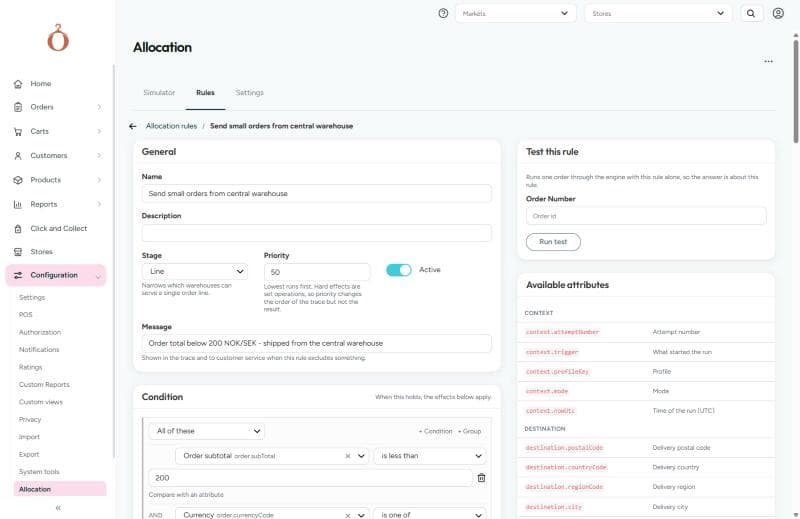
General
| Field | Value |
|---|---|
| Name | Send small orders from central warehouse |
| Stage | Line |
| Priority | 50 |
| Active | On |
| Message | Order total below 200 NOK/SEK - shipped from the central warehouse |
Condition
All of these must hold:
| Attribute | Operator | Value |
|---|---|---|
Order subtotal (order.subTotal) | is less than | 200 |
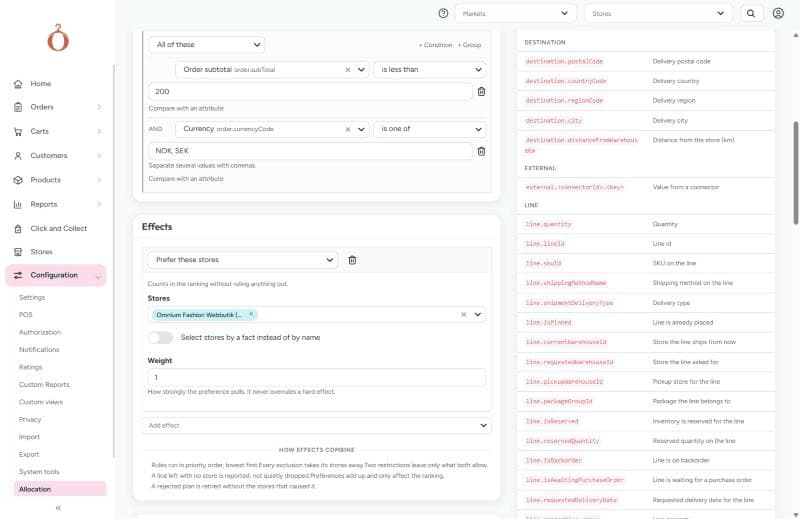
Currency (order.currencyCode) | is one of | NOK, SEK |
The order subtotal is the sum of the order lines including tax, without shipping and fees.
Effects
| Effect | Stores | Weight |
|---|---|---|
| Prefer these stores | Omnium Fashion Webbutik (WebShop) | 1 |
Scope
| Field | Value |
|---|---|
| Order types | Demo |
Every other scope field is empty, so the rule applies in every market, for every customer type, and so on - but only to orders of the order type Demo.
What the rule does
For an order of type Demo with a subtotal below 200 in NOK or SEK, every line gets a preference for the WebShop store. Plans that ship lines from WebShop get a better (lower) score on the Rule preferences objective. The rule never rules any store out: if WebShop cannot serve a line, the engine still ships it from another store.
A preference only changes the result when the profile that ranks the plans weighs the Rule preferences objective. None of the built-in profiles do. Add Rule preferences to the profile you use in Configuration → Allocation → Settings, or use Use only these stores instead if the rule must always apply.
To make the rule a hard requirement instead, replace the effect with Use only these stores. Lines that WebShop cannot serve are then reported as lines that could not be placed, rather than shipped from somewhere else.
The rule as JSON
Edit as JSON in the rule's menu shows the same rule as JSON:
Test the rule
Before you activate a rule, check what it does:
- Validate in the rule's menu checks the rule without saving it, for example that every condition has a value and that each effect belongs in the rule's stage.
- Test this rule runs one order through the engine with this rule alone, so the answer is about this rule. Enter an order number and select Run test. The result says The rule matched or The rule did not match, followed by the plan.
- The allocation simulator runs an order with all active rules, and the Allocation flow tab shows where the rule acted. Use Recent orders in the simulator to see how a rule changes the choice of warehouse across many orders.
All effects
| Effect | Stages | What it does |
|---|---|---|
| Do not use these stores | Line | Removes the named stores from the choices for the line |
| Use only these stores | Line | Narrows the choices to the named stores. Two restrictions leave only what both allow |
| Store must have all of these roles | Line | Keeps only stores that have every store role named here |
| Store must be able to handle this | Line | Keeps only stores that list every capability named here |
| Central warehouses only | Line | Keeps only stores marked as central warehouses |
| Default warehouse only | Line | Keeps only the market's default warehouse. A market with none configured is left alone |
| Goods must already be in the store | Line | Keeps only stores that can serve the line from stock they already hold |
| Do not use these shipping methods | Line | Removes the named shipping methods from the shipment the line ends up in |
| Use only these shipping methods | Line | Narrows the shipment to the named shipping methods |
| Prefer these stores | Line | Counts in favour of the stores in the ranking, without ruling anything out |
| Avoid these stores | Line | Counts against the stores in the ranking, but they can still be used |
| Keep these lines in one shipment | Line | The lines the rule matches are placed together or not at all |
| Keep apart by | Line | Lines whose values for the named attributes differ never share a shipment, even from the same store |
| Do not split this line | Line | The whole quantity comes from one store |
| Reject the plan | Shipment, Plan | Throws the plan away |
| Reject plans using these stores | Plan | Rejects the plan, and the engine tries again without the named stores |
Store effects name stores directly, or select stores by a fact with Select stores by a fact instead of by name - for example every store whose warehouse.roles contains a given role.
How effects combine
- Rules run in priority order, lowest first. Exclusions and restrictions are set operations, so priority changes the order of the trace but not the result.
- Every exclusion takes its stores away, and two restrictions leave only what both allow.
- A line left with no store is reported as a line that could not be placed - it is not quietly dropped.
- Preferences add up and only affect the ranking.
- A rejected plan is retried without the stores that caused it.
Related documentation
- Allocation simulator - see how the rules act on a real order
- Allocation API - simulate allocation from a checkout or an integration
- OmniStock - the store rules that decide which stores can supply a product