

Allocation Settings (BETA)
Configure how the allocation engine behaves - splitting, distance, profiles, and what each store and shipping option can do - globally and per market.
Beta
Allocation settings control how the allocation engine behaves: whether orders may be split, how distance is measured, which profile ranks the plans, and what the engine writes on the order when it allocates. Where rules express your sourcing policy line by line, settings decide the framework every rule works within.
Open the settings in Configuration → Allocation → Settings.
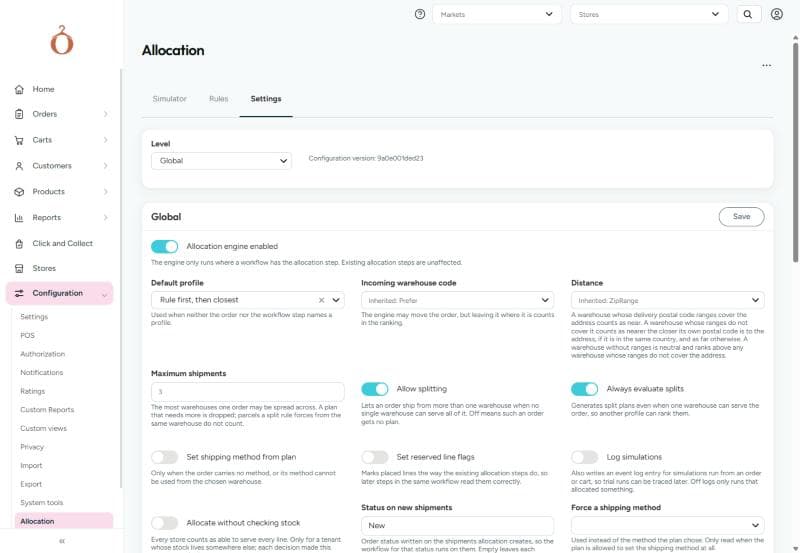
Choose the level
Use Level at the top of the tab to choose what you are configuring:
| Level | What you configure |
|---|---|
| Global | The settings for every order, and the profiles |
| Market | Settings that override the global ones for orders in one market |
| Store | What this store can do as a source of goods |
| Shipping option | What a shipping option can carry, where it delivers, and what it costs |
Global and market settings work as layers. A market only needs the settings that differ from the global ones; a field you leave empty uses the global value. Default profile, Incoming warehouse code, Distance, Maximum shipments, and Candidate store roles show the value they inherit, for example Inherited: Prefer. Stores and shipping options are not layers of these settings - they describe the store or the shipping option itself.
Engine settings
These settings are on the Global and Market levels. Allocation engine enabled is only on the Global level.
| Setting | Default | Description |
|---|---|---|
| Allocation engine enabled | Off | Turns the engine on. The engine only runs where a workflow has the Allocate with allocation rules step; existing allocation workflow steps are unaffected |
| Default profile | Balanced | The profile that ranks the plans when neither the order nor the workflow step names one |
| Incoming warehouse code | Prefer it | What the engine does with the warehouse an order arrives with. See incoming warehouse code |
| Distance | Postal code ranges | How the engine measures how near a store is to the delivery address. See distance |
| Maximum shipments | 3 | The most warehouses one order may be spread across. A plan that needs more is dropped. Parcels that a split rule forces from the same warehouse do not count |
| Allow splitting | On | Lets an order ship from more than one warehouse when no single warehouse can serve all of it. Off means such an order gets no plan |
| Always evaluate splits | Off | Builds split plans even when one warehouse can serve the whole order, so a profile that prefers them can rank them |
| Set shipping method from plan | Off | Writes a shipping method onto the shipments the engine moves. A shipment keeps the method it has; one without a method gets the cheapest method that can be used from the chosen warehouse |
| Set reserved line flags | On | Marks the placed lines as reserved, the way the existing allocation workflow steps do, so later steps in the same workflow read them correctly. The inventory reservation itself stays with the inventory workflow steps |
| Allocate without checking stock | Off | Every store counts as able to serve every line. Only for a tenant whose stock is kept outside Omnium; each decision made this way says so in the trace |
| Allow goods that are on order | Off | Lets a store serve a line from a confirmed purchase order that arrives before the customer's requested delivery date. Off means only stock on hand counts |
| Status on new shipments | Empty | The order status written on the shipments the engine moves or splits off, so the workflow for that status runs on them. When empty, a moved shipment keeps its status, and a shipment that is split off gets the next status in the order type's status flow |
| Force a shipping method | Empty | A shipping method written on the shipments the engine moves, instead of the one the plan chose. Only used when Set shipping method from plan is on |
| Candidate store roles | Empty | A store needs one of these store roles to be considered at all. Empty means every store that is a warehouse |
Incoming warehouse code
An order can arrive with a warehouse already set, for example from the webshop. Incoming warehouse code decides how much that counts:
| Option | Behavior |
|---|---|
| Ignore it | The warehouse code the order arrived with carries no information |
| Prefer it | The engine may move the order, but leaving it where it is counts in the ranking |
| Keep it when possible | The order stays where it came in as long as that warehouse can serve it. Otherwise it is planned again, and the step reports a warning |
| Always keep it | The order never moves. A line the warehouse cannot serve is reported instead |
Lines that are already reserved or picked always stay where they are, whatever this setting says.
Distance
Distance decides how the engine measures how near a store is to the delivery address when it ranks plans - for the Closest profile and the distance objective in other profiles. Rules that test distance, such as destination.distanceFromWarehouseKm, always use kilometres from coordinates, whatever this setting says.
| Option | How distance is measured |
|---|---|
| Not measured | Every store counts as equally near, so distance never separates plans |
| Postal code ranges | A store whose delivery postal code ranges cover the address counts as near. A store whose ranges do not cover it counts as nearer the closer its own postal code is to the address, in the same country, and as far otherwise. A store without ranges is neutral, and ranks above a store whose ranges do not cover the address |
| Zones | The store and the address are matched to the configured postal code zones. The same zone counts as near, different zones as far. Without a zone on either side, postal code ranges decide |
| Kilometres | The distance in kilometres between the store and the delivery address, from their coordinates. When either has no coordinates, postal code ranges decide |
Profiles
A profile is what the engine optimises for. On the Global level, the Profiles section lists the built-in profiles and any you have added. Select Add to add your own, and Save to store your changes.
A profile weighs one or more objectives in tiers. Tier 1 decides first; a later tier only separates plans that tied on the tiers above it. Tie threshold sets how close two plans must be to count as tied (0.01 by default). The built-in profiles cannot be deleted, but you can change their weights.
| Objective | Favours plans that |
|---|---|
| Fewest shipments | Use fewer warehouses |
| Shipping cost | Have a lower estimated shipping cost, from the shipping options' internal costs |
| Distance | Ship from stores nearer the customer |
| Chance of delivering | Ship from stores with deeper stock, so every shipment is likely to be picked in full |
| Store priority | Ship from stores with a higher priority (a lower sort order) |
| Stays where it is | Keep lines on the warehouse they are on, or arrived with |
| Rule preferences | Use the stores that rules prefer, and avoid the stores rules avoid |
| Central warehouses | Ship from central warehouses |
| Carbon cost | Have lower estimated emissions |
Prefer these stores and Avoid these stores in rules only change the result when the ranking profile includes Rule preferences. None of the built-in profiles do, so add it to the profile you use.
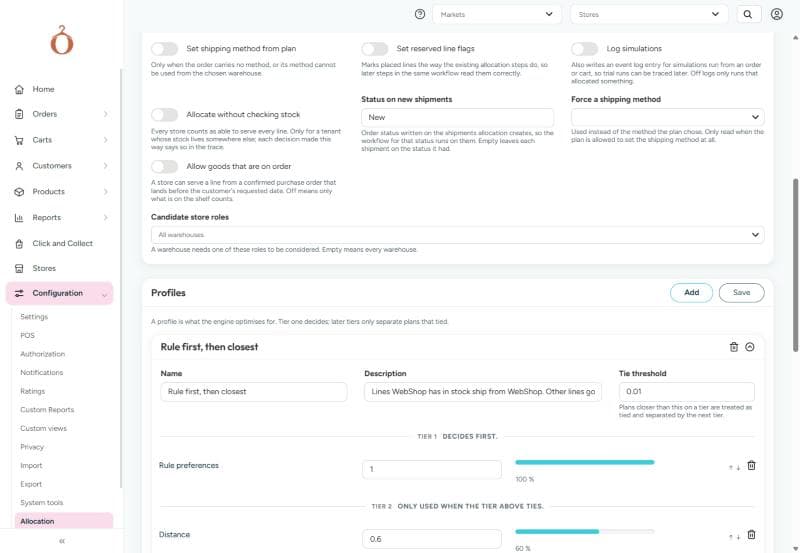
See how profiles rank plans for the built-in profiles and what each one ranks by.
What this store can do
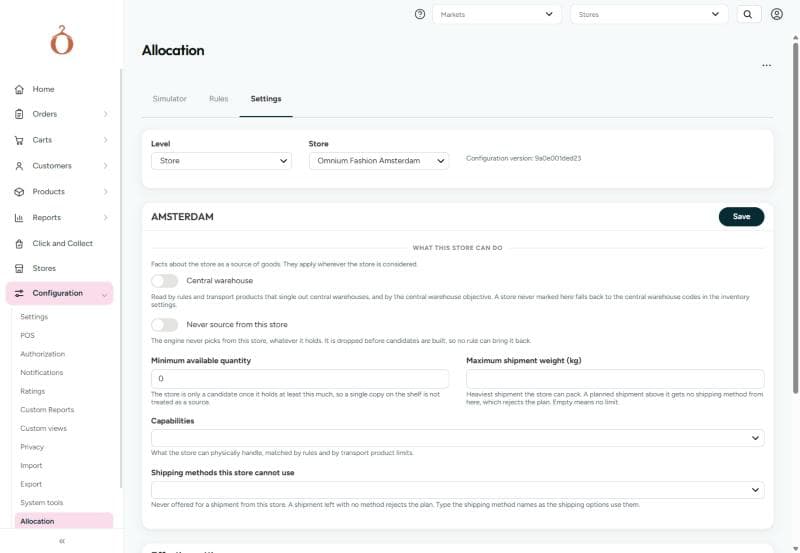
On the Store level, What this store can do holds facts about the store as a source of goods. They apply wherever the store is considered, for every order. You can also edit them on the store itself, under Stores, on the store's Fulfillment rules tab.
| Field | Description |
|---|---|
| Central warehouse | Marks the store as a central warehouse, for rules, shipping options, and the central warehouses objective. A store not marked here falls back to the central warehouse codes in the inventory settings |
| Never source from this store | The engine never picks this store, whatever it holds. It is left out before any rule runs, so no rule can bring it back |
| Minimum available quantity | The store is only a candidate once it holds at least this much, so a single item on the shelf is not treated as a source. Not applied when stock is not checked, or when the line is served from goods on order |
| Maximum shipment weight (kg) | The heaviest shipment the store can pack. A planned shipment above it gets no shipping method from this store, which rejects the plan. Empty means no limit |
| Capabilities | What the store can physically handle, for example temperature-controlled goods or bulky items. Matched by rules and by shipping option limits |
| Shipping methods this store cannot use | Never offered for a shipment from this store. A shipment left with no shipping method rejects the plan |
Maximum shipment weight and Shipping methods this store cannot use work through the shipping options, so they only reject plans when the tenant has shipping options configured.
Shipping options
On the Shipping option level, choose a shipping option to set what it can carry, where it can deliver, and what it costs the business. The engine checks every planned shipment against these limits before it offers the shipping method. Leave a field empty for no limit. These are facts about the transport product - anything that is policy belongs in a rule.
A limit is only checked when the order has the information it needs. For example, Service area needs a numeric postal code, Countries it delivers to needs a country on the address, and Maximum distance from the store (km) needs coordinates for both the store and the address.
| Field | Description |
|---|---|
| Maximum weight (kg) | The heaviest shipment the option can carry |
| Maximum length (cm), Maximum width (cm), Maximum height (cm) | The largest item the option can carry |
| Maximum total dimensions (cm) | The largest length + width + height |
| Countries it delivers to | The countries the option delivers to |
| Service area | The postal code ranges the option delivers to, for example 0150-0999, 1300-1399. Empty means the option is not limited by postal code |
| Postal codes it cannot reach | Postal code ranges the option does not deliver to |
| Maximum distance from the store (km) | How far from the sending store the option can deliver |
| The store must be able to handle | Capabilities the sending store must have, matched against the store's Capabilities |
| Customer types | The customer types the option is offered to |
| Not available from central warehouses | The option cannot be used from a central warehouse - for example store pickup |
| Cost per shipment | In the Internal cost section: what one shipment costs the business, as opposed to what the customer is charged. Used when plans are ranked by shipping cost |
| Cost per kg | An additional cost per kilogram of the shipment |
| Currency | The currency of the costs. The engine does not convert between currencies, so give every option its costs in the same currency |
Effective settings
On the Global, Market, and Store levels, Effective settings shows the settings the engine actually uses at that level, after the layers are combined. Resolved from shows the layers they came from, for example defaults → global → market:NOR.
The Configuration version at the top of the tab identifies the version of the allocation settings, stores, and markets. Every decision records it, so you can trace a result back to the configuration that produced it.
Changes you save on this tab reach the engine at once. Changes made elsewhere - for example a store's Fulfillment rules tab, store roles, or shipping options in other settings screens - can take up to 5 minutes. Select Refresh configuration in the menu at the top of the page to reload the configuration at once.
Related documentation
- About the allocation engine - what the engine is and how to start using it
- Allocation rules - the sourcing policy the settings frame
- Allocation simulator - see the effect of a setting on a real order
- OmniStock - the store rules that decide which stores can supply a product