

About Allocation Engine (BETA)
What the Omnium allocation engine is, how it decides which stores and warehouses an order ships from, and how to start using it.
Beta
The allocation engine decides which stores and warehouses an order ships from - the core of distributed order management (DOM) in Omnium. It looks at every line on the order, finds the stores that can serve it, builds the possible ways to ship the whole order, and picks the best one. Every decision comes with the reasons behind it.
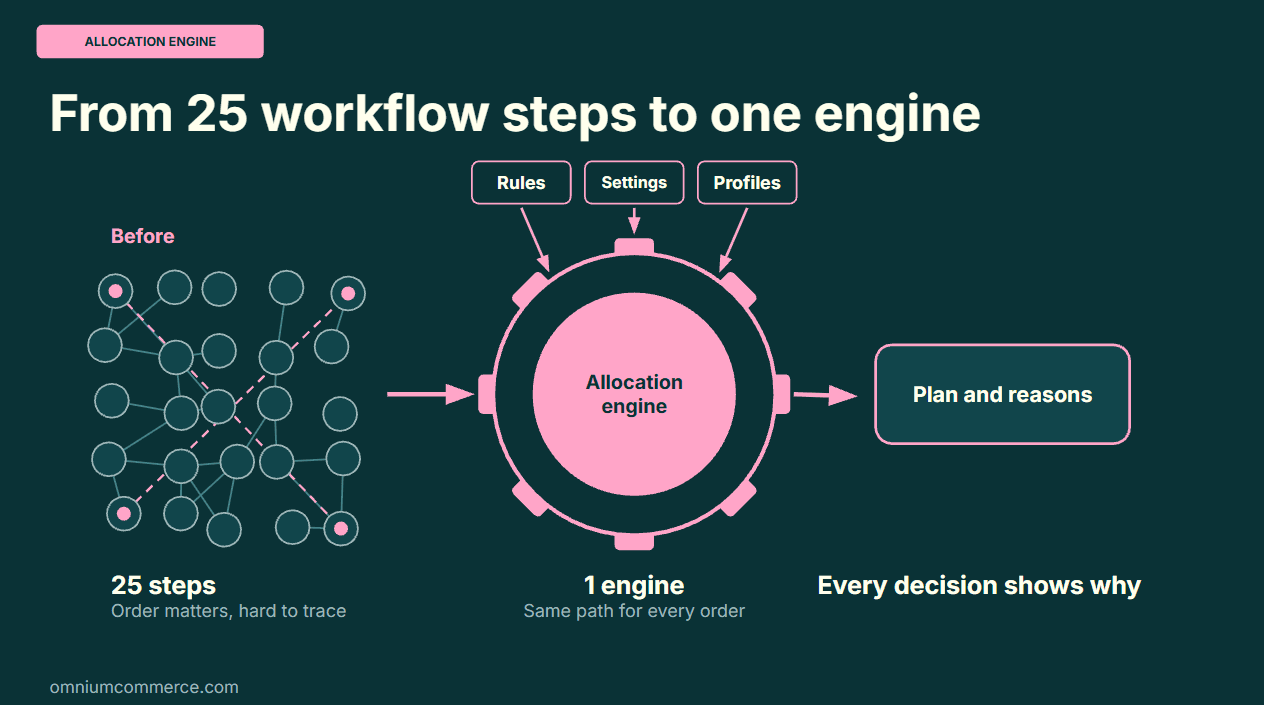
One engine for every allocation decision
The allocation engine brings sourcing into one workflow step and one decision:
- Your policy is configuration. Your sourcing policy lives in rules, settings, and profiles that you manage in Configuration → Allocation.
- Every order takes the same path. The engine runs the same stages for every order, so the result does not depend on how a workflow is put together.
- The best plan wins. The engine builds every possible way to ship the order, scores each one, and chooses the best.
- Every decision shows why. Each decision comes with the reasons - which stores were ruled out, by which rule, and why the chosen plan ranked first. See them in the simulator.
What the engine uses
| Input | What it decides |
|---|---|
| Rules | Your sourcing policy: which stores may, may not, or should preferably ship which lines, which lines ship together, and which plans are not allowed |
| Settings | The engine's behavior: whether it is enabled, which store roles count as candidates, whether and how far orders may be split, how distance is measured, and what happens to a warehouse the order came in with. Set globally and override per market. Stores and shipping options have their own allocation details, such as capabilities, weight limits, and costs |
| Profiles | How plans are ranked - for example Fewest shipments, Closest, or Lowest cost. See how profiles rank plans |
| The order and stock | The lines, the delivery address, the sales store, and the available stock at each store, including stock buffers and OmniStock rules |
Manage rules and settings in Configuration → Allocation, on the Rules and Settings tabs.
How the engine decides
For each order, the engine:
- Finds the candidates - every store that is a warehouse, carries the product, passes its OmniStock rules, and has enough available stock.
- Applies the line rules - rules rule stores out, restrict lines to certain stores, or prefer some stores over others.
- Builds plans - every way to ship the whole order, from one warehouse or split across several, within the maximum number of shipments.
- Checks each plan - shipping options, weight and distance limits, and the shipment and plan rules.
- Ranks the plans - each plan is scored under the profile, and the best one is the selected plan.
The result is a plan: which store ships which lines, in how many shipments, with which shipping method. Lines that no store can serve are reported with the reasons, rather than silently left behind. The simulator shows each of these stages for a real order.
Where the engine runs
Automation, staff, checkout, and admins all use the same engine, so every order takes the same path whichever way it is allocated or simulated.
| Where | What it does |
|---|---|
The Allocate with allocation rules workflow step (AllocateWithRules) | Allocates new orders in the order workflow, on the New status |
| Configuration → Allocation → Simulator | Shows what the engine would do with an order or a cart, and why, without changing anything |
| Preview and allocate on a cart or an order | Previews the plan, lets a person adjust it, and applies it |
| The Allocation API | Simulates allocation from outside Omnium - for example on a checkout page, to show where a basket would ship from |
When the engine has placed an order, the order shows an Allocation panel with Why this store? and Open in the simulator, and the decision is written to the order's event log.
Get started
- Enable the engine. The allocation engine is in beta - contact support to enable it.
- Write your rules. Start from one of the rule templates, and check each rule with Test this rule.
- Try it on real orders. In the simulator, select Recent orders to see how often the engine agrees with where your orders ship from today.
- Run it in shadow mode. Add the Allocate with allocation rules workflow step with
modeset toShadow. The engine then runs on every new order, compares its plan with where the order ships from, and logs the difference - without changing the order. - Switch it on. When you are happy with the results, set
modetoAllocate. The engine then moves or splits the shipments to match its plan.
The workflow step has these properties:
| Property | Description |
|---|---|
mode | Allocate (default) moves or splits shipments to the plan. Shadow compares the plan with the order and logs the difference. Simulate runs the engine without changing the order |
profileKey | The profile that ranks the plans, when the order does not request one |
failOnNoPlan | When true, the step fails instead of warning when no plan can serve the order |
trigger | Reallocation for a step that reallocates orders, for example after a store cancels. Leave it empty for new orders |
The allocation engine does not support virtual stock locations. In a tenant that uses them, the engine reports this and does not allocate.
Related documentation
- Allocation rules - write the sourcing policy the engine follows
- Allocation simulator - see what the engine decides for an order, and why
- Allocation API - simulate allocation from a checkout or an integration
- Allocation workflow steps - the individual workflow steps for allocation and reallocation