

Allocation Workflow Steps
Workflow steps for warehouse allocation, order splitting, and reallocation in Omnium OMS.
Allocation workflow steps handle the assignment of orders and order lines to warehouses, splitting orders across multiple fulfillment locations, and reallocating orders when inventory or circumstances change.
Overview
These steps are critical for distributed order management (DOM), enabling:
- Initial allocation - Assigning orders to warehouses based on inventory and proximity
- Order splitting - Dividing orders across multiple warehouses when no single location has all items
- Reallocation - Moving orders to different warehouses when cancellations occur or inventory becomes available
- Package handling - Breaking down bundled products into components
Available Steps
Warehouse Assignment
| Step | Key | Description |
|---|---|---|
| Allocate to Warehouse | AllocateToWarehouse | Assign all shipments to a specific warehouse |
| Set Warehouse Based on Zip | SetWarehouseBasedOnZip | Assign warehouse based on delivery zip code |
| Try Allocate to Current Warehouses | TryAllocateOrderToCurrentWarehouses | Lock shipments where current warehouse has all items |
Order Splitting
| Step | Key | Description |
|---|---|---|
| Try Split Order to Warehouse | TrySplitOrderToWarehouse | Split available items to a specific warehouse |
| Try Split Unreserved Order Lines | TrySplitUnreservedOrderLines | Split unreserved lines using configurable filters |
| Try Split Unreserved to Closest Zip | TrySplitUnreservedOrderLinesToClosestZip | Split to nearest warehouse by zip code |
| Try Split Unreserved to Nearest Coordinates | TrySplitUnreservedOrderLinesToNearestCoordinates | Split to nearest warehouse by coordinates |
| Try Split Unreserved to New Shipment | TrySplitUnreservedOrderLinesToNewShipment | Split unreserved lines to a new shipment |
Reallocation
| Step | Key | Description |
|---|---|---|
| Try Reallocate Entire Order | TryReallocateEntireOrder | Move entire order to warehouse with all items in stock |
| Try Reallocate Entire Order to Specific Warehouse | TryReallocateEntireOrderToSpecificWarehouse | Move entire order to a named warehouse |
| Reallocate Entire Order Based on Zip Code | ReallocateEntireOrderBasedOnZipCode | Reallocate based on delivery zip code |
| Try Reallocate to Other Warehouse | TryReallocateToOtherWarehouse | Move out-of-stock items to another warehouse |
| Try Reallocate on Cancel | TryReallocateOnCancel | Reallocate to nearest warehouse when cancelled |
| Try Reallocate on Cancel Using Geo Location | TryReallocateOnCancelUsingGeoLocation | Reallocate using coordinates when cancelled |
| Try Reallocate by Category ID | TryReallocateByCategoryId | Reallocate orders containing specific product categories |
| Try Reallocate by Product ID | TryReallocateByProductId | Reallocate orders containing specific products |
| Try Reallocate by Store Category ID | TryReallocateByStoreCategoryId | Reallocate based on store product categories |
| Try Reallocate to Purchase Order | TryReallocateToPurchaseOrder | Allocate to incoming purchase orders |
Deadline Management
| Step | Key | Description |
|---|---|---|
| Set Try Reallocate Deadline | SetTryReallocateDeadline | Set deadline for automatic reallocation |
| Remove Try Reallocate Deadline | RemoveTryReallocateDeadline | Clear reallocation deadline |
| Add Reallocation Metadata | AddReallocationMetadata | Update order metadata after reallocation |
Package Handling
| Step | Key | Description |
|---|---|---|
| Product Package Breakdown | ProductPackageBreakDown | Break bundles/packages into component products |
| Reset All Package Components | ResetAllPackageComponents | Restore original package structure |
| Split Colli Products to Separate Shipment | SplitAllColliProductsToSeparateShipment | Move colli products to separate shipment |
| Split Order Lines with Colli Products | SplitOrderLinesWithColliProducts | Split colli lines to quantity 1 |
Purchase Order Handling
| Step | Key | Description |
|---|---|---|
| Set All Order Lines Not Reserved to Be Purchased | SetAllOrderLinesNotReservedToBePurchased | Mark unreserved lines for purchase order |
Common Configuration Properties
Many allocation steps share common properties:
| Property | Type | Description |
|---|---|---|
warehouseCode | string | Target warehouse code |
storeRoles | string | Filter warehouses by role (e.g., "central", "store") |
ignoreZipCodeRange | boolean | Skip zip code range validation |
SkipForManualOrder | boolean | Skip step for manually created orders |
SkipForShipment | string | Skip for specific shipping methods (comma-separated) |
Example: Reallocate on cancel
If the order type has SplitCancelledOrderlinesToStatus configured, cancelled order lines will automatically be split into a new shipment with the specified status. This is typically used in combination with reallocation workflow steps to reallocate the cancelled lines to another warehouse.
When selecting 'Cancel orderline(s)' the cancel modal will have option to reallocate.
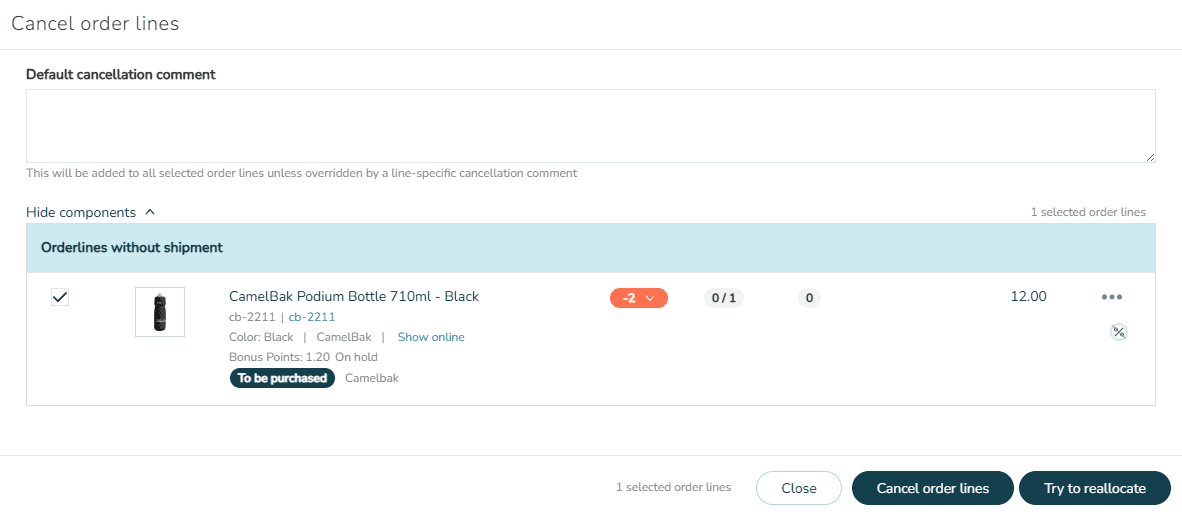
The reallocation logic is determined by the workflow steps configured on the status specified in SplitCancelledOrderlinesToStatus. When the reallocation workflow steps run, the previously allocated warehouse is excluded from the allocation candidates.