

Allocation Simulator (BETA)
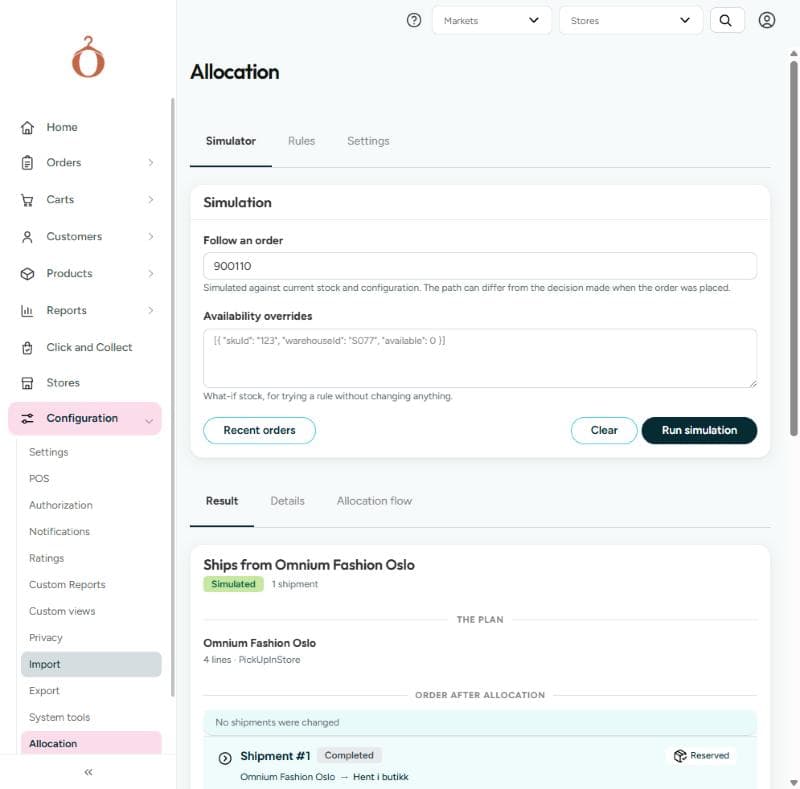
Run an order or cart through the allocation engine to see which warehouses it would ship from, and why, without changing anything.
Beta
The allocation simulator runs an order or a cart through the allocation engine and shows the decision: which warehouses (stores) the lines ship from, how many shipments that makes, which alternatives the engine considered, and why it ruled out the warehouses it did not choose. Use it to understand a sourcing decision on a live order, to try a rule or a profile before it goes live, or to explore what-if stock scenarios for distributed order management (DOM).
A simulation never writes anything. The order, the cart, and inventory are left as they are.
Open the simulator from Configuration → Allocation → Simulator.
How the allocation engine decides
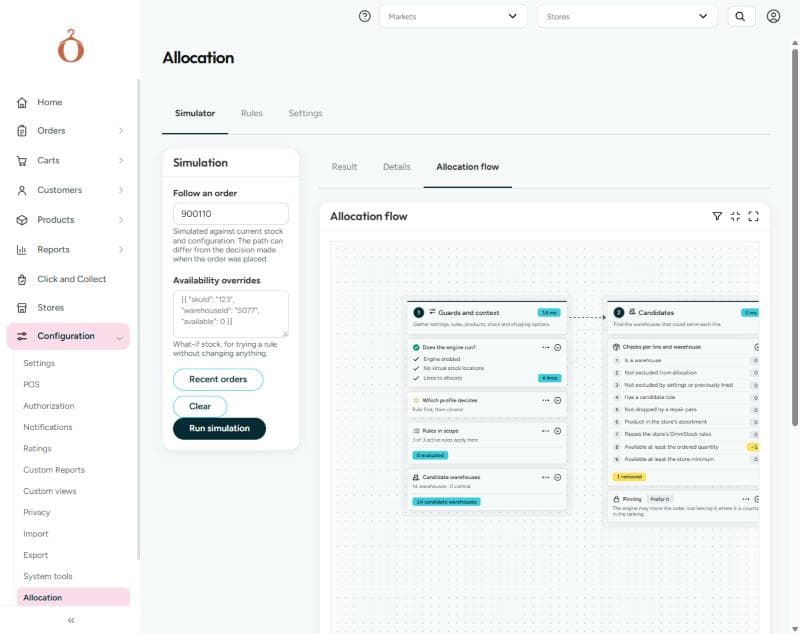
The simulator shows each run in terms of the engine's stages, as they appear on the Allocation flow chart:
| Stage | What happens |
|---|---|
| Guards and context | Checks that the engine runs at all (the allocation engine is enabled, virtual stock locations are not in use, and there are lines to allocate), decides which profile ranks the plans, and gathers the rules in scope and the candidate warehouses |
| Candidates | Every store is a candidate for every line. Stores are ruled out when they are not warehouses, are excluded from allocation, lack a candidate role, do not carry the product in their assortment, fail their OmniStock rules, or do not have enough available stock. Reserved or picked lines stay where they are |
| Line rules | Allocation rules for the line stage exclude, restrict, or prefer warehouses per line, and decide which lines must ship together or apart |
| Segmentation | The engine builds plans: first every single warehouse that can ship the whole order, then split plans when splitting is allowed. A plan never uses more warehouses than the maximum number of shipments allowed. Lines no warehouse can serve are set aside as lines that could not be placed |
| Shipment and plan checks | Each plan gets its shipping options, estimated shipping cost, distance, and delivery probability. Shipment and plan rules can reject a plan; when a rule rejects every plan because of certain warehouses, the engine tries again without them |
| Ranking | Each plan is scored under each profile. The best plan under the primary profile is the selected plan |
| Outcome | The result of the run - see outcomes |
| Commit | Applies the selected plan to the order. A simulation never commits; the simulator only shows what the commit would do in Order after allocation |
Simulate an order or a cart
- Enter the id of an order or a cart in Follow an order.
- Optionally, enter Availability overrides to try a stock scenario (see below).
- Select Run simulation, or press Enter in the id field.
The simulation runs against current stock and configuration. The result can therefore differ from the decision the engine made when the order was placed - the stock that order was allocated against may no longer exist.
You can also open the simulator directly from an order or a cart. When the allocation engine has placed an order, the order shows an Allocation panel with an Open in the simulator link, and a cart has the same option in its Allocation menu (see preview and allocate a cart). Both open the simulator with the id already filled in and run it straight away. The link carries the id in the URL, so you can share a simulation with a colleague.
Select Clear to remove the result and return to the configuration with no order applied.
Try a stock scenario with availability overrides
Availability overrides lets you replace the available quantity for a SKU at a warehouse for this run only. This is useful for testing a rule - for example, "what happens to this order if the main warehouse runs out?" - without changing inventory.
Enter a JSON array where each entry names a SKU, a warehouse, and the available quantity:
| Field | Type | Description |
|---|---|---|
skuId | string | The SKU, matching the order line code |
warehouseId | string | The warehouse (store) code |
available | decimal | Units available to promise at that warehouse for this run |
The given values replace what Omnium holds for that SKU and warehouse. Every other SKU and warehouse uses current inventory. If the text is not valid JSON, the simulator shows an error and does not run.
Read the result
The result is shown in three tabs: Result (what the engine decided), Details (why it ranked the plans as it did), and Allocation flow (the path the order took through the engine).
Result: the plan
The headline says where the order ships from, followed by an outcome badge, the number of shipments, and the number of lines that could not be placed.
| Outcome | Meaning |
|---|---|
| Simulated | The engine found a plan for the order |
| No feasible plan | No combination of warehouses can serve the order. The lines that could not be placed are listed with the reasons |
| Partly allocated | The best plan leaves some lines unplaced |
| Not enabled | Allocation is not enabled for this order |
| Nothing to allocate | The order has no lines left for the engine to place, or there are no warehouses to place them at |
| Virtual stock locations not supported | The order uses virtual stock locations, which the allocation engine does not handle |
Below the headline:
- The plan - one entry per shipment: the warehouse and the lines and quantities it sends.
- Lines that could not be placed - each line no warehouse could serve, with the distinct reasons why (see reason keys).
- Order after allocation - a preview of the order as it would look with the plan applied: which shipments move, which are split off, and which lines travel together. This is a copy of the order; it is never saved.
Details: alternatives and scores
The Details tab explains why the selected plan won.
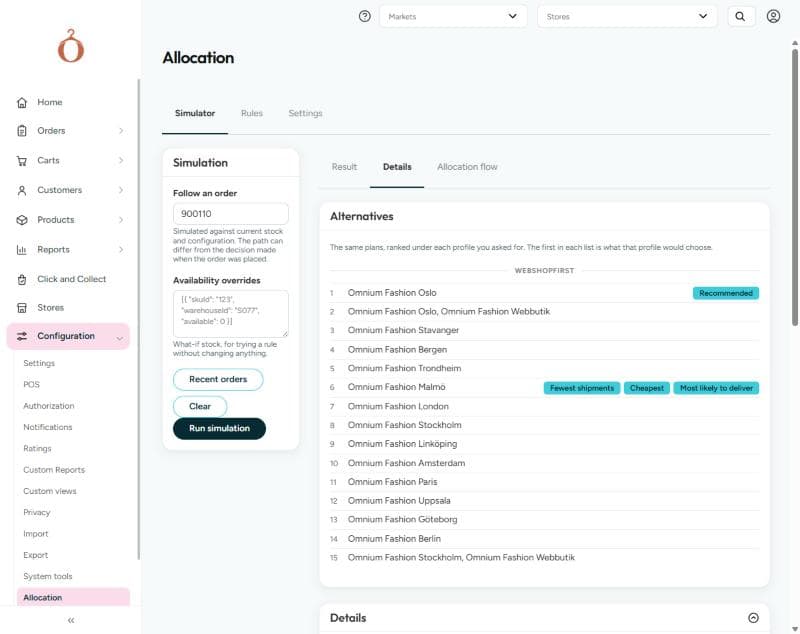
- Alternatives - shown when the engine found more than one plan. The same plans are listed once per profile, best first. The first plan in each list is what that profile would choose, and is labelled Recommended. The labels Fewest shipments, Cheapest, Closest, and Most likely to deliver mark the plans that are best on that measure across all plans, whatever their rank.
- Scores - each plan's score under each profile, with the score per objective, so you can see which objective decided the ranking. Scores run from 0 to 1 and lower is better, the same direction as rule priority: the plan with the lowest score ranks first.
- Configuration version - the version of the allocation configuration the decision was made against. Every decision records it, so you can trace a result back to the configuration that produced it.
- Trace - the engine's full reasoning, grouped by engine stage, with the warehouse and line each entry concerns. The trace can be long, so it is collapsed by default.
How profiles rank plans
A profile is a ranking policy. It weighs objectives such as number of shipments, distance, and shipping cost in one or more tiers. The first tier decides; a later tier only separates plans whose scores in the earlier tiers are within the profile's tie threshold (0.01 by default). When every tier ties, the plan with fewer shipments wins. The score shown for a plan is its first-tier score, while the per-objective breakdown covers every tier.
The first ranking is always the primary profile, which decides the selected plan:
- The profile the order requests.
- Otherwise the default profile in the allocation settings - set globally, and optionally overridden for the order's market or sales store.
- Otherwise
Balanced.
To compare policies, add profiles under Profiles in the Allocation flow filters and run the simulation again - each adds a ranking after the primary one. The plans are worked out once and each profile only orders them, so asking for several profiles costs little more than asking for one.
| Profile | Key | Ranks plans by |
|---|---|---|
| Balanced | Balanced | A mix of fewest shipments, distance, shipping cost, delivery probability, warehouse priority, and keeping lines where they are |
| Fewest shipments | FewestShipments | Fewest warehouses first |
| Lowest cost | LowestCost | Lowest estimated shipping cost first |
| Closest | Closest | Shortest distance to the customer first |
| Most likely to deliver | HighestDeliveryProbability | Deepest stock first, so the shipments are most likely to be picked in full |
| Lowest emissions | Greenest | Mainly estimated emissions, with distance and number of shipments, then warehouse priority |
These are the built-in profiles. A tenant can also define its own profiles; the rankings show them by their key.
Allocation flow: the path through the engine
The Allocation flow tab paints the run onto a chart of the whole allocation pipeline: the stages the order passed, the rules it met, and where each warehouse that was not chosen dropped out. Use it to find the rule or setting that excluded a warehouse you expected to be chosen.
The chart shows the settings for the scope the order belongs to (its market and sales store). Open Filters in the chart header to change what the chart shows:
| Filter | Description |
|---|---|
| Market | The market whose settings the chart shows |
| Sales stores | The selling store whose settings the chart shows |
| Order type | Limits the rules to those that apply to this order type |
| Customer types | Limits the rules to those that apply to this customer type |
| Triggers | The trigger the simulation runs as: initial allocation or reallocation. Rules scoped to a trigger only take part when it matches. Applies to the next simulation run; empty means initial allocation |
| Profiles | Additional profiles to rank the plans under. The selected profiles also apply to the next simulation run |
| Origins | Limits the rules to those that apply to an order origin |
| Show inactive rules | Includes rules that are not active |
| Hide rules | Shows the pipeline stages without the rules |
| Show all links | Shows every connection between cards, not only the path the order took |
| Expand all cards | Shows each card with full detail |
Use Center to fit the chart to the panel, and Full screen to open it in a larger view.
Run the engine on recent orders
When you do not know which order to look at, or you want to see what a configuration change does across many orders, select Recent orders. This runs the engine over a sample of recent orders and compares each plan with where the order ships from today.
| Field | Description |
|---|---|
| Order type | Only orders of this order type |
| Market | Only orders in this market |
| Period | Only orders created in this date range |
| Number of orders | How many orders to run, from 1 to 50 |
Select Run on recent orders. The Summary shows:
| Value | Description |
|---|---|
| Orders run | The number of orders the engine ran |
| Same as today | The share of orders where every line would ship from the warehouse it ships from today |
| Engine time | Total time the engine spent, in milliseconds |
| Outcomes | The number of orders per outcome |
| Chosen warehouses | How often each warehouse was chosen |
| Top exclusions | The rules that excluded warehouses most often |
The table lists each order with its outcome, the planned warehouses, the planned shipment count against today's shipment count (Shipments planned / today), and the rules that excluded the most warehouses. Select a row to open that order in the simulator.
The batch uses today's stock, not the stock these orders were placed against. It answers "what would the current configuration do with orders like these", not "what should have happened". Use it to see the shape of a change before you activate a rule or switch a profile.
Preview and allocate a cart
On a cart, you can run the allocation engine without leaving the cart view, see where the basket would ship from, adjust the plan by hand, and apply it to the cart. Open the cart, go to Order Details, and open the Allocation menu in the toolbar.
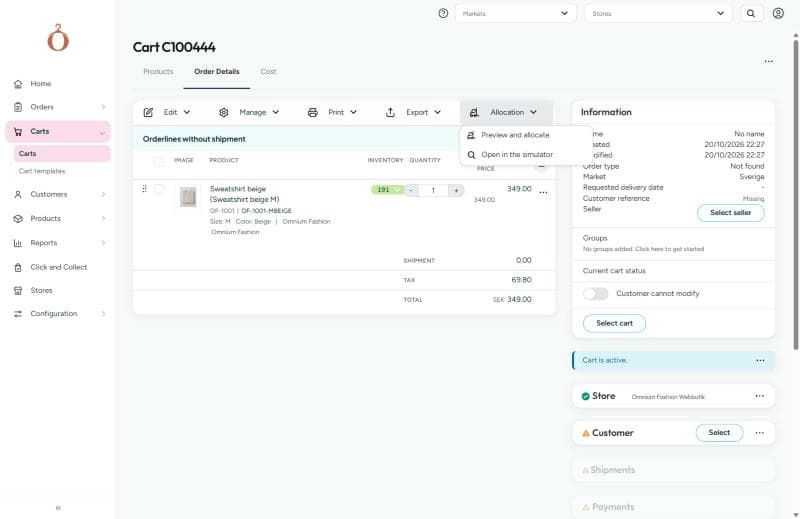
| Menu item | Description |
|---|---|
| Preview and allocate | Opens the allocation dialog for this cart. Not available when the cart is read-only or has no order lines |
| Open in the simulator | Opens the cart in the simulator on Configuration → Allocation → Simulator and runs it |
The menu shows these items when the allocation engine is enabled globally or for at least one market. Otherwise it offers Preview workflow results instead. The order view has the same Preview and allocate item in the Allocation menu of its order lines.
The allocation dialog
The dialog runs the engine as soon as it opens, against the cart as it is on the page - including changes you have not saved yet. Its result shows the same Result, Details, and Allocation flow tabs as the simulator.
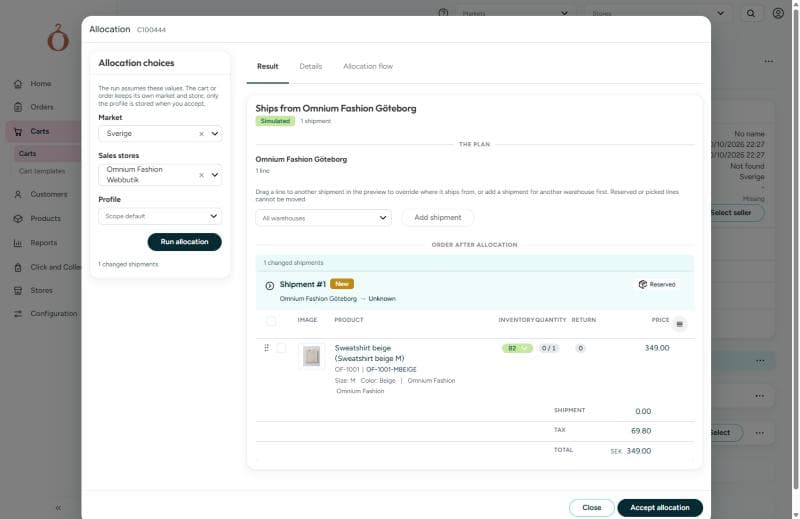
Under Allocation choices you can change what the run assumes, then select Run allocation to run it again:
| Field | Description |
|---|---|
| Market | The market the run assumes. Starts as the cart's market |
| Sales stores | The selling store the run assumes. Starts as the cart's store |
| Profile | The profile that ranks the plans. Scope default uses the default profile for the market and store. Starts as the cart's requested profile, if it has one |
The cart keeps its own market and store. Only the profile is stored on the cart when you accept the allocation.
Override the plan by hand
Under Order after allocation, drag a line to another shipment to change where it ships from. To move a line to a warehouse the plan does not use, choose the warehouse in All warehouses and select Add shipment first, then drag the line into the new shipment. Reserved or picked lines cannot be moved.
An edited plan is marked Edited by hand. Select Back to the engine's plan to discard your changes. The engine checks an edited plan and refuses it if it is impossible, such as a package split across warehouses. It warns about plans that are possible but go against the engine:
| Warning | Meaning |
|---|---|
| Not enough stock at this warehouse | The warehouse does not have enough available stock for the line |
| The allocation rules had excluded this warehouse for the line | An allocation rule ruled out this warehouse for the line |
| This warehouse was not a candidate in the run | The warehouse was not considered for the line at all |
| The line is not placed at any warehouse | The line is left without a warehouse |
Accept the allocation
Select Accept allocation to apply the plan on show - the engine's plan or your edited one - to the cart and save it. The shipments are moved or split to match the plan. If the plan has warnings, you are asked to confirm first. When there is nothing to apply, for example because no plan was found, the dialog says Nothing was allocated with the outcome, and the cart is not changed.
Select Close to leave the dialog without changing the cart.
Reason keys
Lines that could not be placed and the trace explain each decision with a reason. The same reason keys are returned in the message field of the trace from the allocation API.
| Key | Shown in the simulator as |
|---|---|
InsufficientStock | Not enough stock |
NoStockOnHand | The store does not hold the goods yet |
BelowMinimumAvailableQuantity | Below the store's minimum quantity |
ServedFromIncomingSupply | The store covers this line from goods already on order |
InventoryIgnored | Stock levels were not checked on this run |
NoEligibleWarehouse | No store can serve this line |
NoWarehouseCoversGroup | No store can serve these lines together |
SeparatedFromGroup | Lines kept together disagree on how they should be kept apart; the first line decides |
NotAWarehouse | The store is not a warehouse |
WarehouseMissingRole | The store does not have a candidate role |
WarehouseExcludedFromAllocation | The store is never sourced from |
WarehouseExcludedBySettings | Excluded by the allocation settings |
NotACentralWarehouse | The store is not a central warehouse |
NotTheDefaultWarehouse | The store is not the market's default warehouse |
NoDefaultWarehouseForMarket | The market has no default warehouse configured |
ProductNotInAssortment | The product is not in this store's assortment |
ExcludedByOmniStockRules | Excluded by the store's OmniStock rules |
PreviouslyExcludedWarehouse | Already tried and rejected |
LinePinnedToWarehouse | The line is reserved or picked here |
IncomingAllocationHonoured | Kept where the order came in |
IncomingAllocationInfeasible | The warehouse the order came in with could not serve it |
ExcludedByRule | Excluded by a rule |
RestrictedByRule | Not among the stores a rule allows |
PreferredByRule | Preferred by a rule |
MissingRequiredRole | The store does not have a role the rule requires |
MissingRequiredCapability | The store cannot handle what the rule requires |
PlanRejectedByRule | Rejected by a rule |
RepairedByExcludingWarehouses | Tried again without the rejected stores |
MaxShipmentsExceeded | More shipments than allowed |
ShipmentOptionConstraintFailed | The transport product cannot carry this shipment |
NoAllowedShippingOption | No shipping method can be used from this store |
ShippingOptionsExcludedByRule | Shipping options excluded by a rule |
ShippingOptionsRestrictedByRule | Shipping options restricted by a rule |
Related documentation
- Allocation API - run the same simulation from a checkout or an integration
- Allocation workflow steps - the workflow steps that allocate and reallocate orders
- OmniStock - the store rules that decide which stores can supply a product